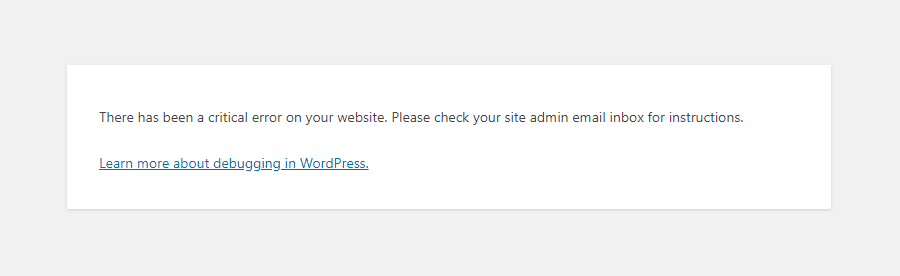
If you run a WordPress site long enough, you will eventually run into a PHP error. I have been using WordPress and PHP for over 20 years now and I still get PHP errors. Sometimes it's a blank white screen, a cryptic “There has been a critical error” message, or a WooCommerce store suddenly stops working. These problems can feel scary, but the fix often starts with the same set of tools built right into WordPress. By enabling a few lines in your wp-config.php file, you can uncover exactly what is wrong and get your site back up. This guide walks you through the practical steps to find and fix common WordPress errors using PHP debugging.
The White Screen of Death and Other PHP Errors
The most infamous WordPress error is the White Screen of Death (WSOD). It shows absolutely nothing, just a blank page. That usually means PHP has hit a fatal error and stopped running before the page could render. Other common errors include syntax errors after editing a theme file, memory limit exhaustion, or plugin conflicts that cause a PHP timeout. No matter which error you are facing, the first thing to do is check if WordPress has already sent you any details about the error, often through an email to the admin address. That email may include a recovery link or a clue about which plugin or theme caused the problem.
Enable Debug Mode in wp-config.php
The quickest way to see PHP errors is to enable WordPress debug mode. You do this by editing the wp-config.php file, which is located in the root directory of your site. Use FTP or your hosting file manager to open that file and look for a line that says define('WP_DEBUG', false);. Change false to true. If you don’t see that line, add it just before the line that says “That’s all, stop editing! Happy blogging.” The code looks like this:
define('WP_DEBUG', true);
After saving the file, reload the page that was showing the error. PHP errors that were hidden before will now appear directly on the screen, a white page will suddenly show a message like “Fatal error: Uncaught Error: Call to undefined function…”. That message tells you the exact file, line number, and function that failed. Write it down so you can fix the problem.
Check if Debug Is Already Set
Sometimes wp-config.php already has WP_DEBUG defined, but it might be set to false. Scan the file for any WP_DEBUG line. If there are multiple definitions, only the first one matters. If you cannot find any WP_DEBUG line, you can safely insert your own. Once you have enabled it, you might also want to turn off screen display so errors are logged instead (see the next section).
Set Up Debug Logging for More Detail
Displaying errors on the screen is useful for development, but on a live site you want to log those errors to a file so visitors don’t see ugly messages. WordPress has a second constant for that: WP_DEBUG_LOG. Add this line after your WP_DEBUG line:
define('WP_DEBUG_LOG', true);
With this enabled, all PHP errors will be written to a file called debug.log inside the /wp-content/ folder. You can download that file via FTP or check it from your hosting file manager. This is particularly helpful for errors that happen during form submissions or background processes where you can’t easily see the screen. Remember that the debug.log file can grow large, so check it and delete it after you fix the error.
Using WP_DEBUG_DISPLAY
If you want to log errors but not show them on the screen (a common setup for live sites), add one more line:
define('WP_DEBUG_DISPLAY', false);
This tells WordPress to suppress on-screen error messages while still writing everything to the debug.log file. You can then review the log privately without startling your visitors.
How to Display PHP Errors on Screen (When Safe)
If you are working on a local development copy or a staging environment, displaying errors directly is the fastest way to pinpoint the problem. With WP_DEBUG set to true and WP_DEBUG_DISPLAY set to true (or simply not defining it, as true is the default), the errors appear right on the page. This works for most PHP errors, but be aware that the debugger only shows PHP errors if WordPress core functions can still run. If the error happens very early in the loading process, before WordPress initializes its error handler, you won’t see anything. In that case, check your server error logs or look at the debug.log file.
While wp_debug true will show errors, some problems are deeper. For example, if memory is exhausted before the debug system starts, the screen will remain blank. That is when you increase the PHP memory limit by adding this line to wp-config.php (after the debug lines):
define('WP_MEMORY_LIMIT', '256M');
This gives WordPress more room to run and may prevent the fatal error from occurring in the first place.
Troubleshooting Common PHP Errors
Once you have enabled debugging, you will eventually see something like “Fatal error: Uncaught Error: Call to undefined function” or “Parse error: syntax error, unexpected…”. Here are the usual suspects:
- Plugin or theme conflict – The error message often includes the name of the plugin file or theme file. Deactivate that plugin via FTP by renaming its folder, then see if the error goes away.
- Outdated PHP version – Older plugins or themes may not work with a modern PHP version. Check the message for a clue about a function that no longer exists. Consider updating the plugin or switching to a compatible version of PHP.
- Memory limit – If you see “Allowed memory size exhausted”, increase the
WP_MEMORY_LIMITas described above, or ask your host to increase the server’s PHP memory limit. - Syntax errors – If you edited a
functions.phpfile and see a parse error, you likely forgot a semicolon or a closing bracket. Use the debug line number to find the mistake.
For WooCommerce-specific errors, the same debugging methods apply. You can enable WP_DEBUG and check the logs to find out exactly which extension or custom code is causing the trouble.
Turn Off PHP Errors When You’re Done
Once you have fixed the error, it is important to disable debug mode on your live site. Leaving WP_DEBUG set to true can expose sensitive information to visitors and may slow down your site. Reopen wp-config.php and either delete the WP_DEBUG line or change it back to false. If you used WP_DEBUG_LOG, you should also delete or empty the debug.log file from /wp-content/ to keep your installation clean.
Some users ask how to turn off WordPress errors and see only plain PHP errors. That is a more advanced topic, but the key is controlling the WP_DEBUG_DISPLAY constant. When set to false, WordPress errors are hidden while still logging raw PHP errors. If you need plain PHP errors without WordPress’s formatted messages, you may need to modify your server’s php.ini or .htaccess file. However, for most people, the default WordPress debug settings are sufficient.
Frequently Asked Questions
I enabled WP_DEBUG but still see a white screen. What now?
If the screen is still blank after enabling debug, the error may be happening before WordPress loads its debug system. Check your server’s PHP error logs (often available through your hosting control panel) or look for the debug.log file in /wp-content/. If neither shows anything, try increasing the memory limit or temporarily disabling all plugins via FTP.
Will enabling debug mode cause security issues?
On a live site, yes. Displaying PHP errors on the screen can reveal file paths, database details, and version numbers to visitors. Only enable WP_DEBUG and WP_DEBUG_DISPLAY during troubleshooting, and disable them immediately after fixing the error. Using WP_DEBUG_LOG with WP_DEBUG_DISPLAY set to false is safer because errors are written to a file instead of the screen.
How do I find the debug.log file?
The debug.log file is stored inside the /wp-content/ folder of your WordPress installation. You can access it via FTP or your hosting file manager. If the file is not there, make sure you added define('WP_DEBUG_LOG', true); to your wp-config.php file and that the /wp-content/ directory is writable by the server.
Can I use Query Monitor instead of WP_DEBUG?
Yes, the Query Monitor plugin is a popular alternative that shows all PHP errors, database queries, and hooks in a neat panel in your admin bar. It works well for development and debugging without editing core files. However, WP_DEBUG is still the most basic and reliable method for catching fatal errors before any plugins load.
Remember that anything can happen, so be sure to keep a backup of your wp-config.php before editing, and always disable debug mode after you solve the problem. With these steps, you will be ready to handle the next PHP error that comes your way.
